Lab 5 – Baseline Hardening & Monitoring Setup
Establish baseline security configurations for your Windows domain and endpoints, and prepare centralized monitoring for future SIEM integration.
Objective Lab goal
This lab introduces baseline hardening for your Windows Server DC01 and Windows 10 client. You’ll configure audit policies, enable Windows Defender, apply Group Policy Objects (GPOs) for password and lockout settings, and prepare event forwarding for centralized monitoring.
- Outcome 1: Baseline GPOs applied for password, lockout, and audit policy.
- Outcome 2: Windows Defender enabled and configured.
- Outcome 3: Event Viewer logs centralized via Windows Event Forwarding (WEF).
- Outcome 4: Monitoring foundation ready for SIEM integration.
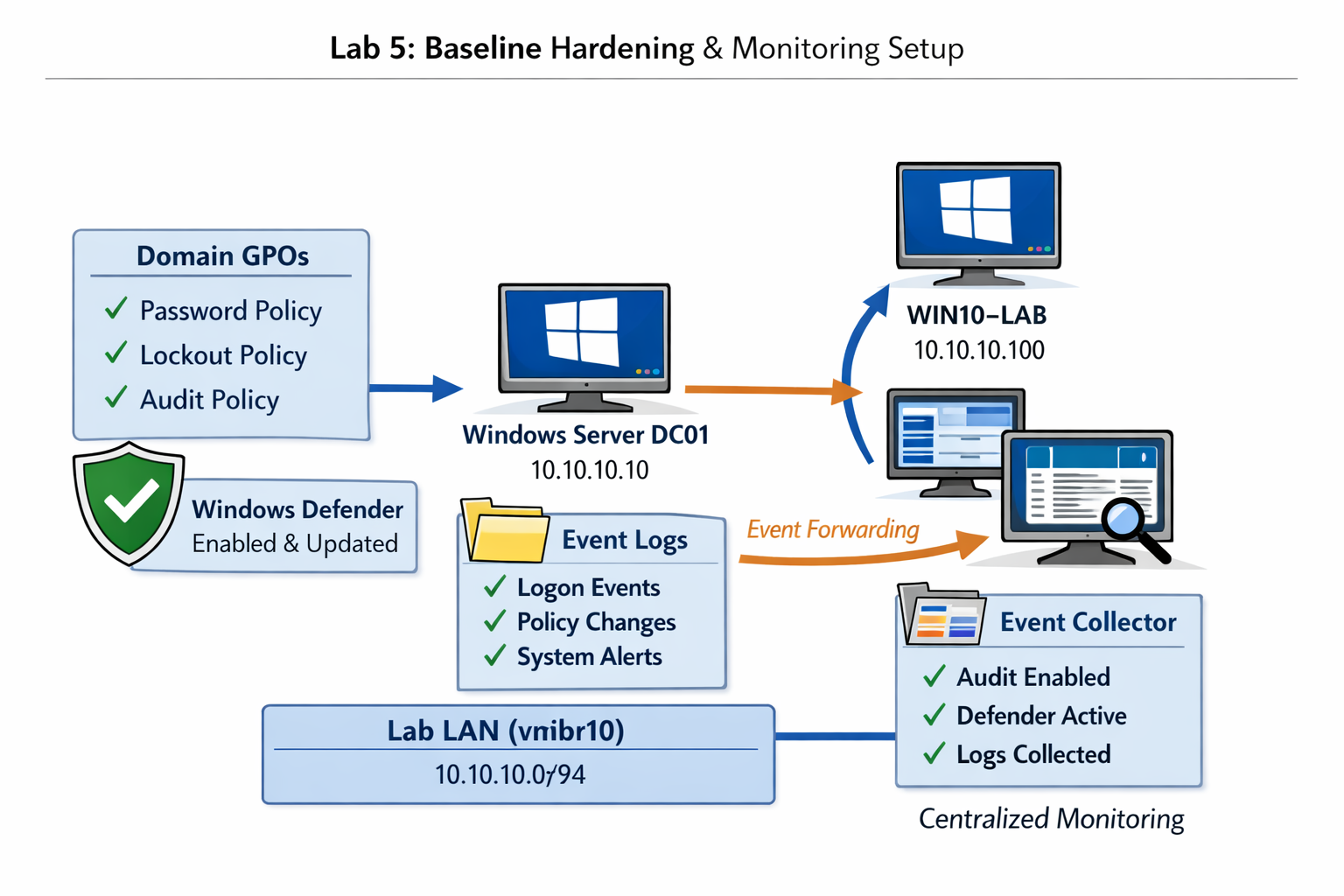
Lab 5: Applying baseline hardening and monitoring configurations across DC01 and Windows 10 client.
Deliverables End‑of‑lab checklist
- DL5.1: Domain GPOs created and linked.
- DL5.2: Audit Policy enabled for logon, object access, and policy change.
- DL5.3: Windows Defender active on all endpoints.
- DL5.4: Event Forwarding configured between client and DC01.
- DL5.5: Baseline documentation completed.
Lab Steps Step‑by‑step instructions
Step 1 – Create Baseline GPOs
~30 minutes- On DC01, open Group Policy Management Console (GPMC).
- Create a new GPO named Baseline Security.
- Edit the GPO:
- Computer Configuration → Policies → Windows Settings → Security Settings → Account Policies → Password Policy:
- Minimum length: 12
- Complexity requirements: Enabled
- Maximum age: 90 days
- Account Lockout Policy:
- Threshold: 5 invalid attempts
- Duration: 15 minutes
- Computer Configuration → Policies → Windows Settings → Security Settings → Account Policies → Password Policy:
- Link the GPO to the domain root.
Step 2 – Enable Audit Policy
~20 minutes- In the same GPO, navigate to: Computer Configuration → Policies → Windows Settings → Security Settings → Advanced Audit Policy Configuration.
- Enable auditing for:
- Logon/Logoff Events
- Object Access
- Policy Change
- Privilege Use
- Force policy update:
gpupdate /force
Step 3 – Verify Windows Defender Status
~10 minutes- On both DC01 and WIN10‑LAB, open PowerShell and run:
Get‑MpComputerStatus | Select AMServiceEnabled, AntispywareEnabled, AntivirusEnabled
- Confirm all values return True.
- Enable periodic scanning if disabled:
Set‑MpPreference ‑DisableRealtimeMonitoring $false
Step 4 – Configure Windows Event Forwarding (WEF)
~30 minutes- On DC01, open Event Viewer → Subscriptions.
- Enable the Windows Event Collector service:
wecutil qc
- Create a subscription named Client Security Logs:
- Collector: DC01
- Source: WIN10‑LAB
- Events: Security, System, Application
- Collector Initiated: Yes
- On WIN10‑LAB, run:
wecutil es /enum-subscription
- Verify logs are forwarding to DC01 under Forwarded Events.
Step 5 – Document Baseline Configuration
~15 minutes- Record the following in your lab notes or documentation folder:
- GPO names and linked OUs
- Audit policy settings enabled
- Defender status and preferences
- Event Forwarding subscription details
- Save as baseline-hardening.md or baseline-hardening.txt for future reference.
Reflection What you should understand now
- Security: How baseline hardening reduces attack surface and enforces consistency.
- Monitoring: How Windows Event Forwarding centralizes visibility for future SIEM integration.
- Governance: How Group Policy defines repeatable security standards across your domain.
Your homelab now has a baseline security configuration and monitoring foundation. In Week 6, you’ll deploy a lightweight SIEM solution to collect and analyze these logs.